React Native Android Release with Azure DevOps and Google Play Store
Introduction
We can use React native, an open source mobile application framework by Facebook, to develop application for Android, IOS, UWP, and Web. In this post, we will see how we can release a React native Android application to Google play store with custom app signing, custom app version configured from Azure DevOps pipeline build number. Sounds interesting, right?
Prerequisites
- Make sure you have a React native application. You can follow this doc to create a dummy application.
- Azure DevOps
Create a dummy android pipeline
Go to Pipelines in Azure DevOps and click on New pipeline, select Azure Devops, select your repository. In the Configure your pipeline section, select Android.
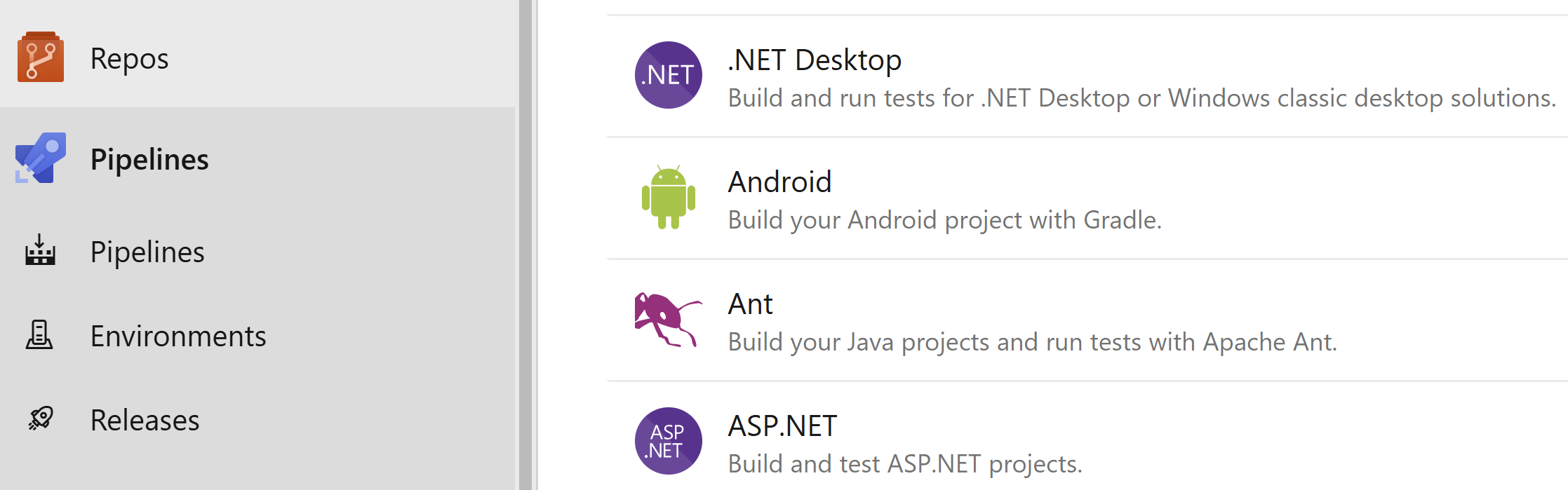
Rename your YAML file and click save. You don’t have to run your pipeline yet.
Application Configuration
Before we create the pipeline, let’s do some configuration in our application.
Update the Gradle file
A gradle file helps us to,
- Add libraries and dependencies
- Define how to build different environments (debug vs. release)
- Sign Android APKs/AABs
- Automate tasks (e.g., tests, publishing, versioning)
Configure the app versioning
By default, the app gets the verson that is mentioned in the app.json file in the root folder. Just like all the other deployments, it is a great idea to have our app version name and app version code configured to the build number and build id from the pipeline. To do that let’s do the changes below in the android\build.gradle file. Remember there is also another build.gradle file in android/app folder. Under the buildscript section, add the below methods.
def getMyVersionCode = { ->
        def code = project.hasProperty('versionCode') ? versionCode.toInteger() : -1
        println "VersionCode is set to $code"
        return code
    }

    def getMyVersionName = { ->
        def name = project.hasProperty('versionName') ? versionName : "1.0"
        println "VersionName is set to $name"
        return name
    }
Update the ext section as below.
ext {
        buildToolsVersion = "35.0.0"
        minSdkVersion = 24
        compileSdkVersion = 35
        targetSdkVersion = 34
        ndkVersion = "26.1.10909125"
        kotlinVersion = "1.9.24"
        versionName = getMyVersionName()
        versionCode = getMyVersionCode()
    }
Below is the full android/build.gradle file content.
buildscript {
    def getMyVersionCode = { ->
        def code = project.hasProperty('versionCode') ? versionCode.toInteger() : -1
        println "VersionCode is set to $code"
        return code
    }

    def getMyVersionName = { ->
        def name = project.hasProperty('versionName') ? versionName : "1.0"
        println "VersionName is set to $name"
        return name
    }
    ext {
        buildToolsVersion = "35.0.0"
        minSdkVersion = 24
        compileSdkVersion = 35
        targetSdkVersion = 34
        ndkVersion = "26.1.10909125"
        kotlinVersion = "1.9.24"
        versionName = getMyVersionName()
        versionCode = getMyVersionCode()
    }
    repositories {
        google()
        mavenCentral()
    }
    dependencies {
        classpath("com.android.tools.build:gradle")
        classpath("com.facebook.react:react-native-gradle-plugin")
        classpath("org.jetbrains.kotlin:kotlin-gradle-plugin")
    }
}

apply plugin: "com.facebook.react.rootproject"
Now go to the android\app\build.gradle file and use the new configs there. Under the android section, go to the defaultConfig and add the content below.
versionCode rootProject.ext.versionCode
versionName rootProject.ext.versionName
Your final defaultConfig would looks like below.
defaultConfig {
        applicationId "com.yourapplicationid"
        minSdkVersion rootProject.ext.minSdkVersion
        targetSdkVersion rootProject.ext.targetSdkVersion
        versionCode rootProject.ext.versionCode
        versionName rootProject.ext.versionName

        manifestPlaceholders = [
            appAuthRedirectScheme: "com.yourapplicationid"
        ]
    }
Create and upload keystore to the Secure files
By default the app uses debug configuration to sign, you can see this setting signingConfigs.debug in the section buildTypes for release. You can also see that in the both cases it uses the same debug.keystore file to sign, which is not recommended for the production releases. Let’s create a new keystore file for our releases first. Run the command below. To run the keytool command, make sure to insall the Java development kit (JDK). Also make sure to reference the appropriate JDK version in the command.
C:\"Program Files"\Java\jdk-24\bin\keytool -genkeypair -v -keystore yourkey-key.keystore -alias your-alias -keyalg RSA -keysize 2048 -validity 200000Make sure to give large number as validity in the command as stated in this post.
Validity (years): Set the length of time in years that your key will be valid. Your key should be valid for at least 25 years, so you can sign app updates with the same key through the lifespan of your app.
As we have created the keystore file, let’s save them in a secured place, and good news is that the Azure DevOps already has a place for this.
From Azure DevOps, go the Library under Pipelines, and click on the +Secure file option under under Secure files.
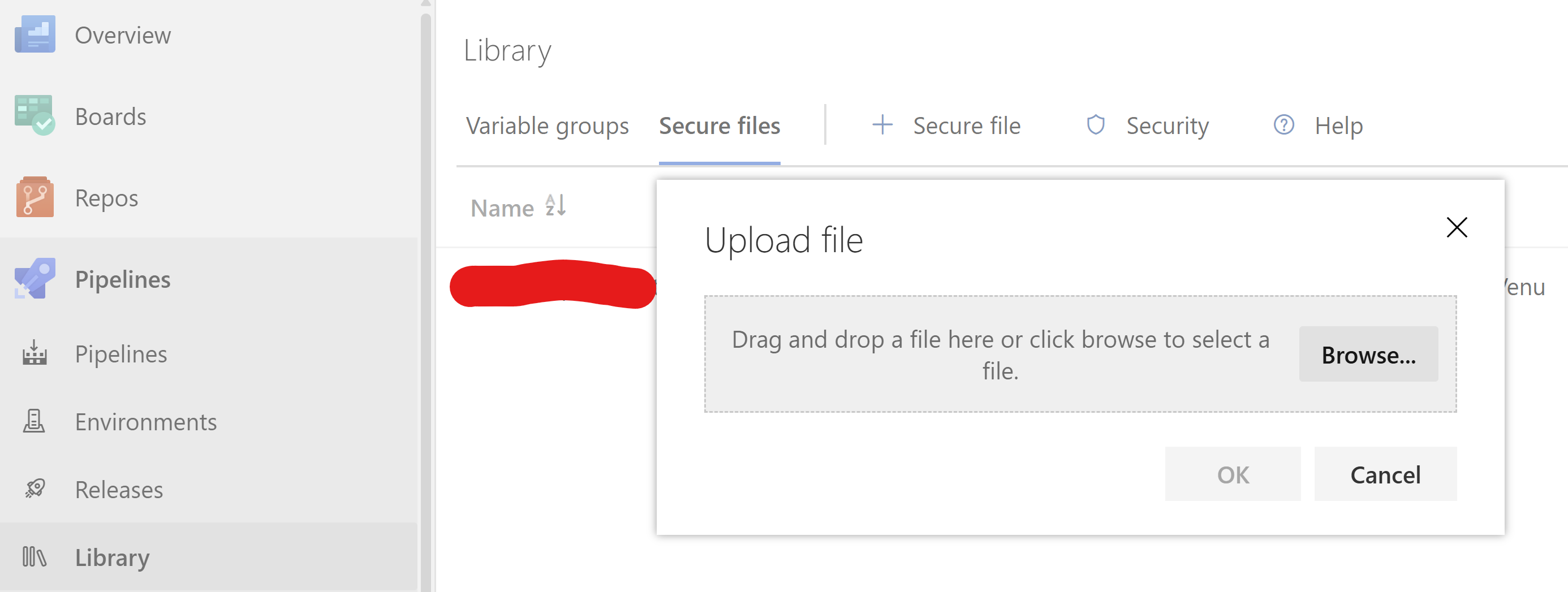
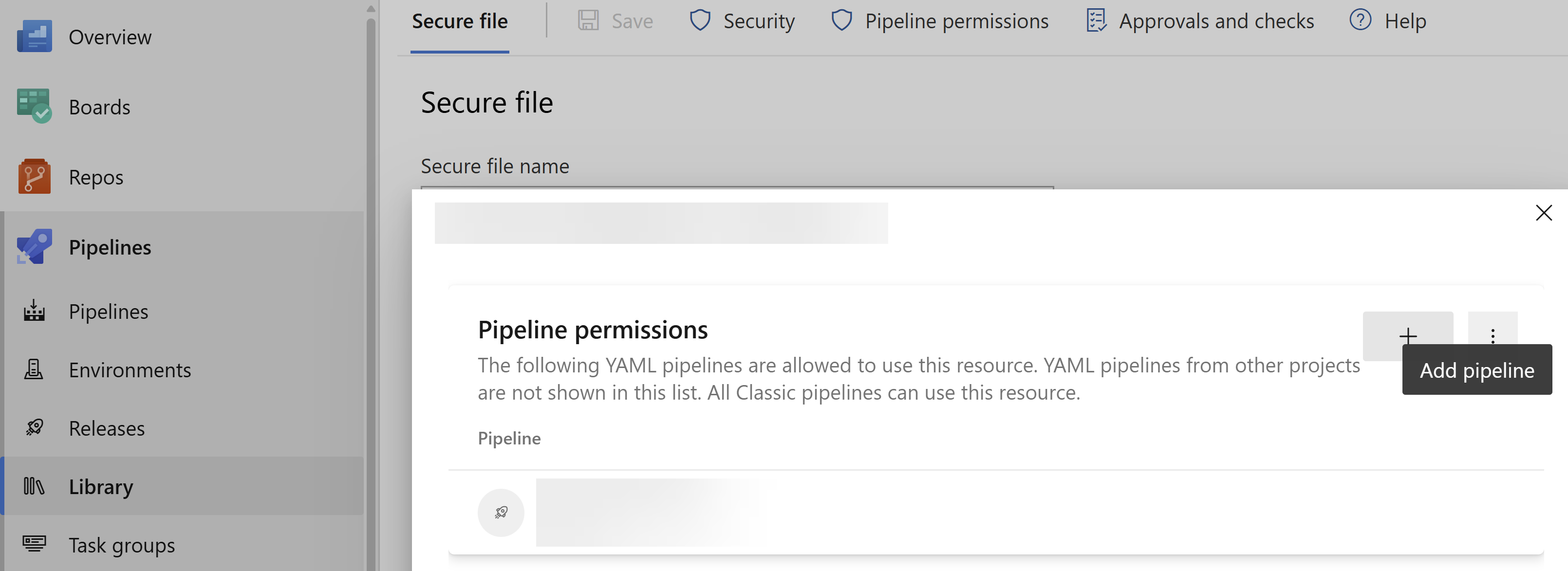
After the secure file is uploaded, it is important to allow permission for our pipeline to use it. Go to the secure file, and click on the Pipeline permissions and then click on the Add pipeline plus icon and select your pipeline.
Configure the keystore password as pipeline variables
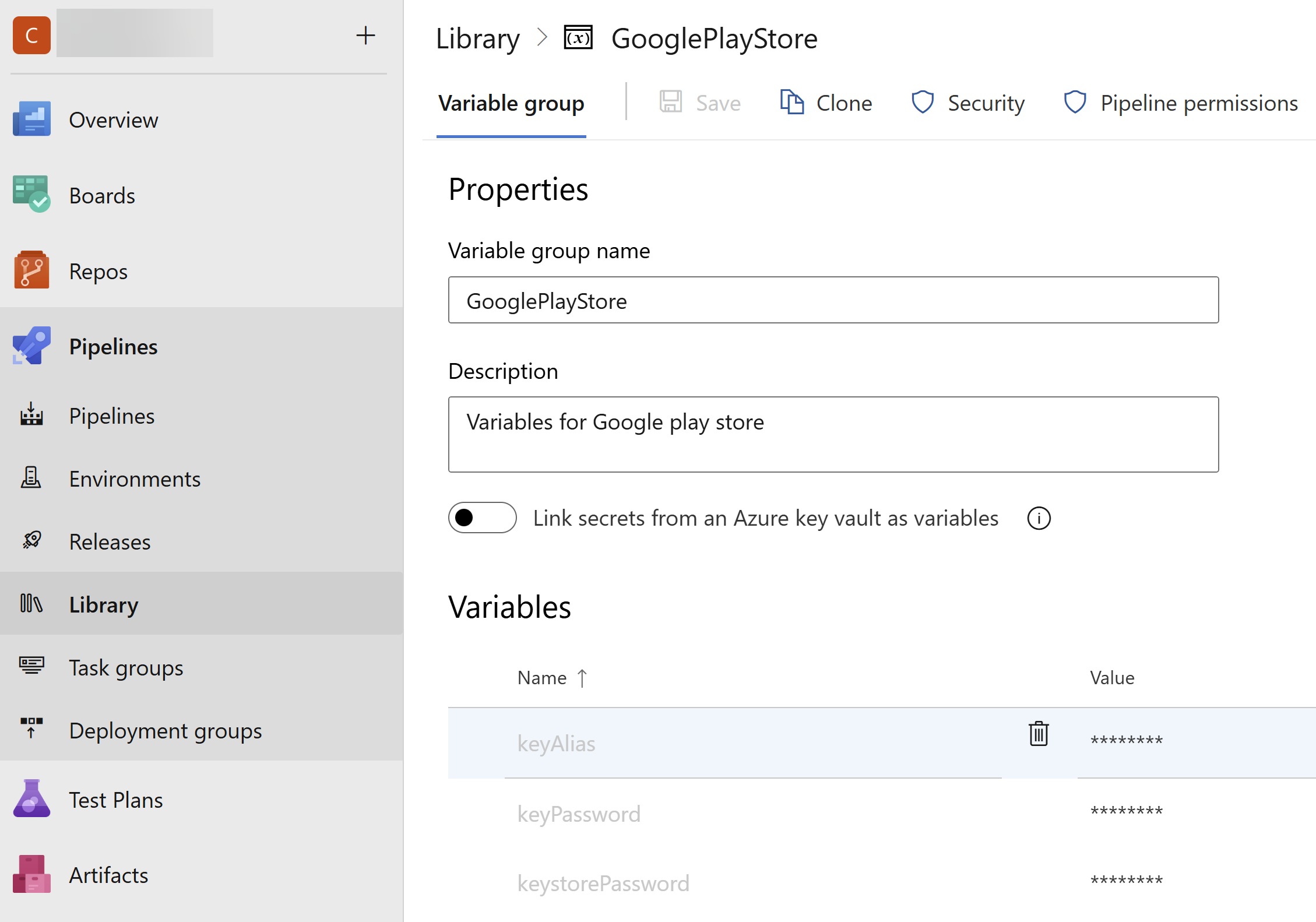
Now it is time to create a variable group in Azure DevOps and add the secured variables. Here keyAlias and keystorePassword is the details you had provided when you were creating the keystore.
Update the Signing config for release
Let’s create a release configuration under signingConfigs like below.
release {
            if (project.hasProperty("KEYSTORE_PATH")) {
                storeFile file(KEYSTORE_PATH)
                storePassword KEYSTORE_PASSWORD
                keyAlias KEY_ALIAS
                keyPassword KEY_PASSWORD
            }
        }
From the above code, the variables KEY_PASSWORD, KEY_ALIAS, KEYSTORE_PASSWORD, KEYSTORE_PATH will be set from the pipeline itself. This is to sign the files using our secure file from Azure DevOps.
As there is a separate signingConfig for release, let’s configure that. Update the release section under the buildTypes.
release {
            // Caution! In production, you need to generate your own keystore file.
            // see https://reactnative.dev/docs/signed-apk-android.
            signingConfig signingConfigs.release
            minifyEnabled enableProguardInReleaseBuilds
            // Enables resource shrinking.
            shrinkResources true
            proguardFiles getDefaultProguardFile("proguard-android.txt"), "proguard-rules.pro"
        }
Make sure to set the minifyEnabled and shrinkResources to true as this will reduce the overall size of your app bundle and time to install the app. You can read more on the app optimization here.
Optional: Increase the memory during the build
You may get the error below when you run your pipeline.
Execution failed for task ‘:app:collectReleaseDependencies’. > Java heap space
To fix this, go to your gradle.properties and update the settings below.
# Specifies the JVM arguments used for the daemon process.
# The setting is particularly useful for tweaking memory settings.
# Default value: -Xmx512m -XX:MaxMetaspaceSize=256m
org.gradle.jvmargs=-Xmx4g -XX:MaxMetaspaceSize=512m
Azure DevOps YAML
As we have done the configurations, let’s start updating the YAML file by setting a name first.
name: $(date:yyyy).$(Month)$(rev:.r) Below is the full YAML file.
# Android
# Build your Android project with Gradle.
# Add steps that test, sign, and distribute the APK, save build artifacts, and more:
# https://docs.microsoft.com/azure/devops/pipelines/languages/android
# https://learn.microsoft.com/en-us/azure/devops/pipelines/ecosystems/android
name: $(date:yyyy).$(Month)$(rev:.r)
trigger:
  - main
  - development

pool:
  vmImage: "macos-latest"

variables:
  - group: GooglePlayStore
  - name: KEYSTORE_FILE_NAME
    value: 'yourapp-gplaystore-key.keystore'

steps:
  - checkout: self
  - task: UseNode@1
    inputs:
      version: "22.x"
    displayName: "Use Node.js 22.x"
  - script: |
      ls -la $(Build.SourcesDirectory)
      ls -la $(Build.SourcesDirectory)/android
    displayName: "List Android Directory"
  - script: |
      npm install
    displayName: "npm install"
  - task: DownloadSecureFile@1
    name: keyStore
    displayName: "Download keystore from secure files"
    inputs:
      secureFile: $(KEYSTORE_FILE_NAME)
  - script: echo $(keyStore.secureFilePath)
    displayName: "Echo Keystore Path"
  - script: |
      ls -la $(Build.SourcesDirectory)/android
      ls -la $(Build.SourcesDirectory)/android/app
    displayName: "List Files"
  - task: Gradle@3
    displayName: "Gradle Build"
    inputs:
      workingDirectory: "$(Build.SourcesDirectory)/android"
      gradleWrapperFile: "android/gradlew"
      gradleOptions: "-Xmx3072m"
      publishJUnitResults: false
      testResultsFiles: "**/TEST-*.xml"
      tasks: "assembleRelease bundleRelease"
      options: "-PversionName=$(Build.BuildNumber) -PversionCode=$(Build.BuildId) -PKEYSTORE_PATH=$(keyStore.secureFilePath) -PKEYSTORE_PASSWORD=$(keystorePassword) -PKEY_ALIAS=$(keyAlias) -PKEY_PASSWORD=$(keyPassword)"
  - task: AndroidSigning@3
    inputs:
      apkFiles: "**/*.apk"
      apksignerKeystoreFile: "$(KEYSTORE_FILE_NAME)"
      apksignerKeystorePassword: "$(keystorePassword)"
      apksignerKeystoreAlias: "$(keyAlias)"
      apksignerKeyPassword: "$(keyPassword)"
      zipalign: false
  - task: CopyFiles@2
    displayName: "Copy APK Files"
    inputs:
      contents: "**/*.apk"
      targetFolder: "$(Build.ArtifactStagingDirectory)"
  - task: CopyFiles@2
    displayName: "Copy AAB App Bundle"
    inputs:
      sourceFolder: "android/app/build/outputs/bundle/release"
      contents: "**/*.aab"
      targetFolder: "$(Build.ArtifactStagingDirectory)/android/app/build/outputs/bundle/release"
  - task: PublishBuildArtifacts@1
    displayName: "Publish artifacts"
    inputs:
      pathToPublish: $(Build.ArtifactStagingDirectory)
      artifactName: yourapp
We use the task DownloadSecureFile@1 to download the keystore file and provide its path in the Gradle@3 task. We set the name to keystore and use the property secureFilePath to get its path.
Note that in Gradle@3 task even though you have set the workingDirectory as $(Build.SourcesDirectory)/android, you will need to se gradleWrapperFile as android/gradlew. Also check the options we pass to that task, that’s how we are setting the variables to the build.gradle files. The task value assembleRelease is to generate the APK file and bundleRelease is to create Android App Bundle (aab) for Google Play Store.
Google Play Integrations
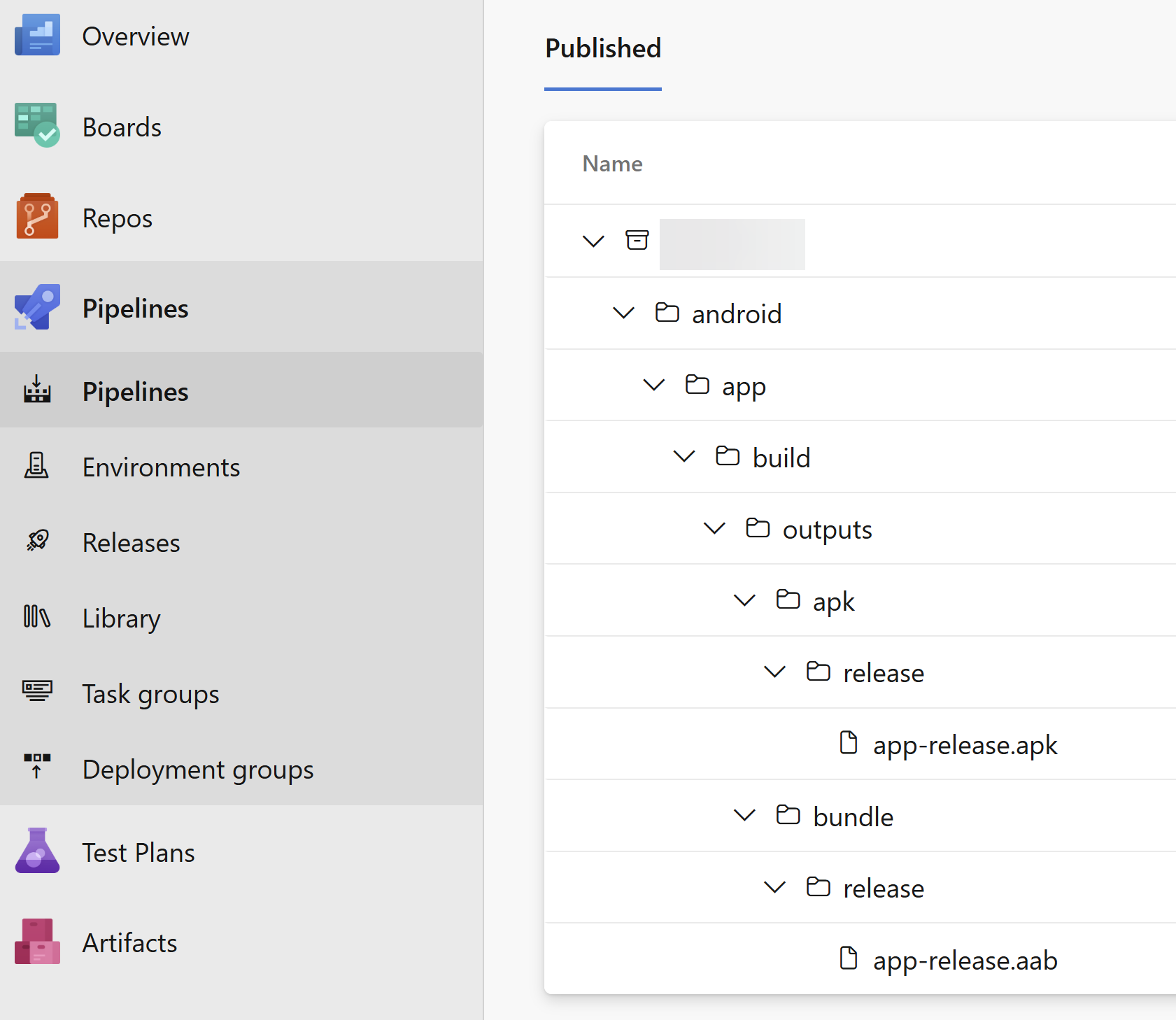
Once the pipeline is run, you should be able to manually download the App bundle file from the artifacts.
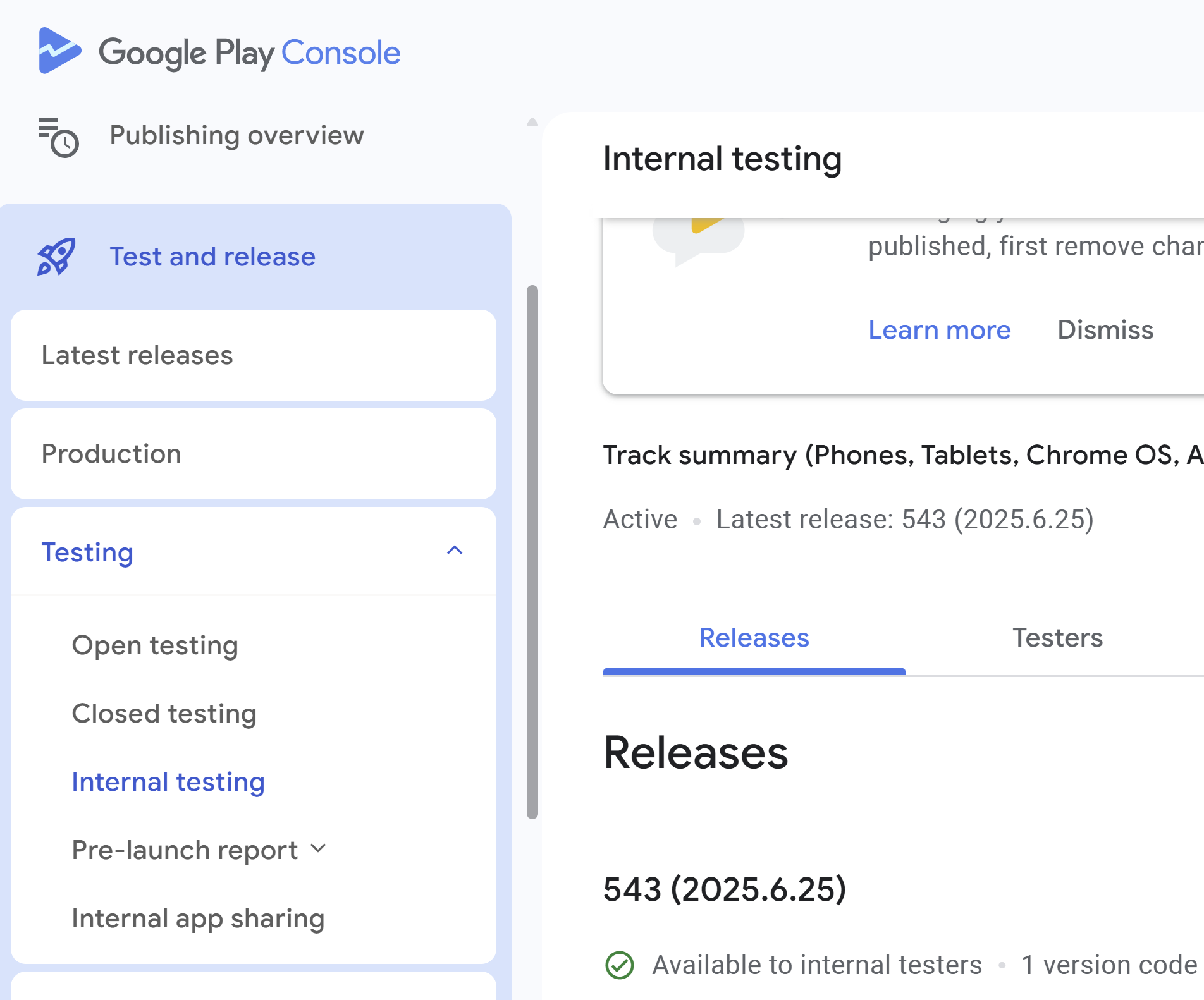
You can upload to the Play store console for doing an internal release to test the app internally now. Select your application, click on the Test and release menu and then under Testing, select internal testing. This is where you can create a few internal users and upload your aab file. You can share the invite link with them. Please be noted that your internal tester would need to accept the request on their first visit to install the app. They should also be able to update the application from Play store when you release a new version.
Service account and permission in Google Cloud Console
Unfortunately the doc here and here are outdated and it took a while for me to configure this. You won’t be able to see the Setup and API access menu in https://play.google.com/console/ as Google had moved them to another process. The new steps are,
Create your service account in Google Cloud
- Go to Google Cloud Console → IAM & Admin → Service Accounts
- Create a new service account, grant it the Owner role (or at least Project > Editor)
- Under the service account, add a JSON key and save the downloaded file. Please make sure to download this to a secure place, as this contains your key in it
Invite the service account in Play Console
- In the Play Console, go to Users and permissions.
- Click Invite new user.
- Paste the client_email from your JSON file (e.g. foo@bar.iam.gserviceaccount.com).
- Assign your service account permissions:
- Select your app
- Give at least the permissions below
- View app information (read-only)
- Release to production, exclude devices, and use Play App Signing
- Release apps to testing tracks
- Send the invite, this will be auto approved
Create Azure DevOps service connection
- Go to your AZDO project → Project settings → Service connections.
- Create a New service connection → Google Play.
- For service account email, use the JSON’s client_email; for private key, paste the entire key (include \n line breaks exactly)
- Save it with the name yourapp-google-play. Make sure to replace yourapp with your app name.
Update the release YAML with GooglePlayRelease task
The final step in the YAML file is to update it with the GooglePlayRelease task so that we can release app directly from the pipeline.
  - task: GooglePlayRelease@4
    inputs:
      serviceConnection: 'yourapp-google-play'
      applicationId: 'com.yourappid'
      action: 'SingleBundle'
      bundleFile: '$(Build.ArtifactStagingDirectory)/android/app/build/outputs/bundle/release/*.aab'
      track: 'internal'
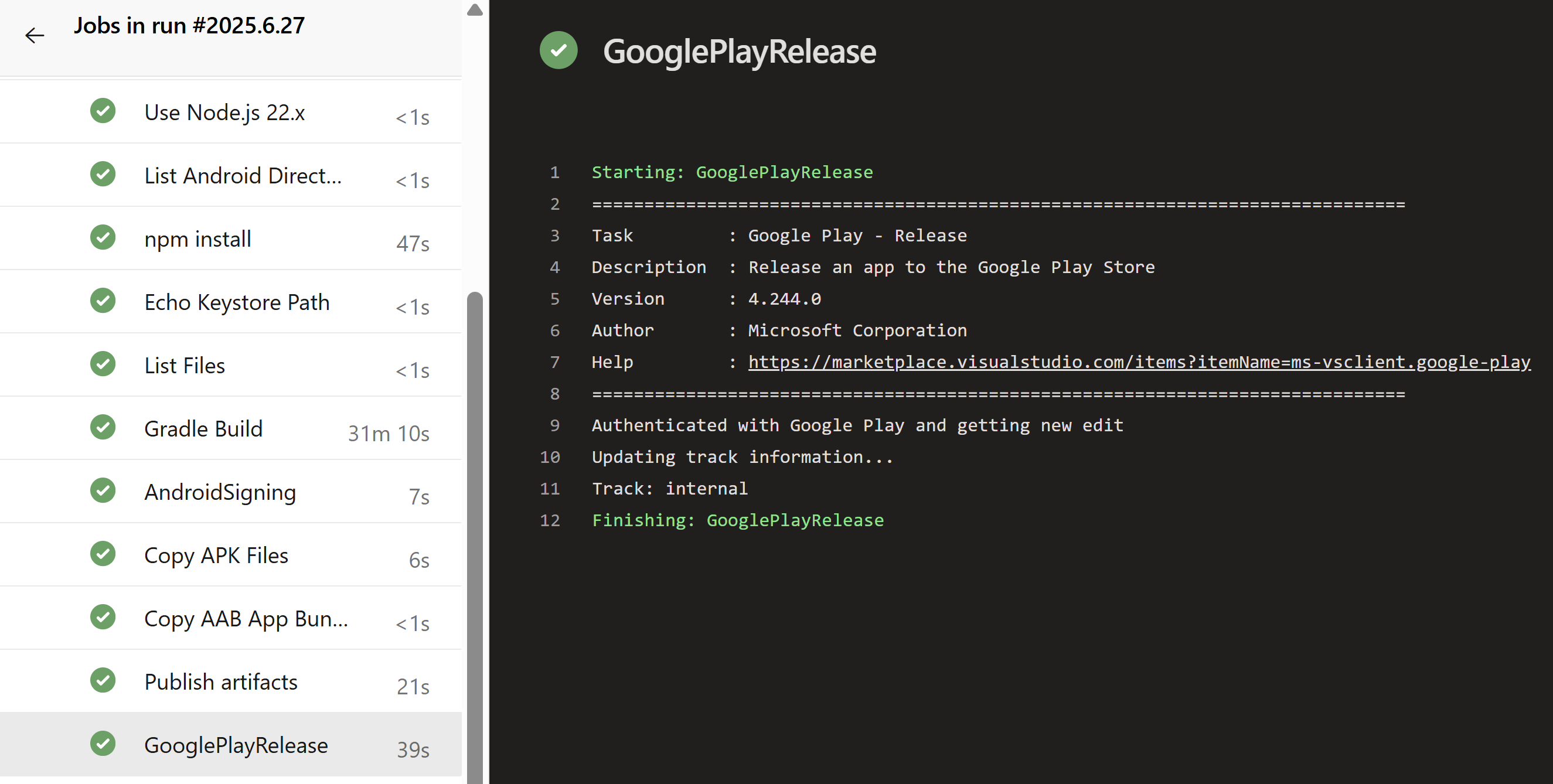
Finally, run your pipeline and if everything goes well, you should see that your pileline result as below.
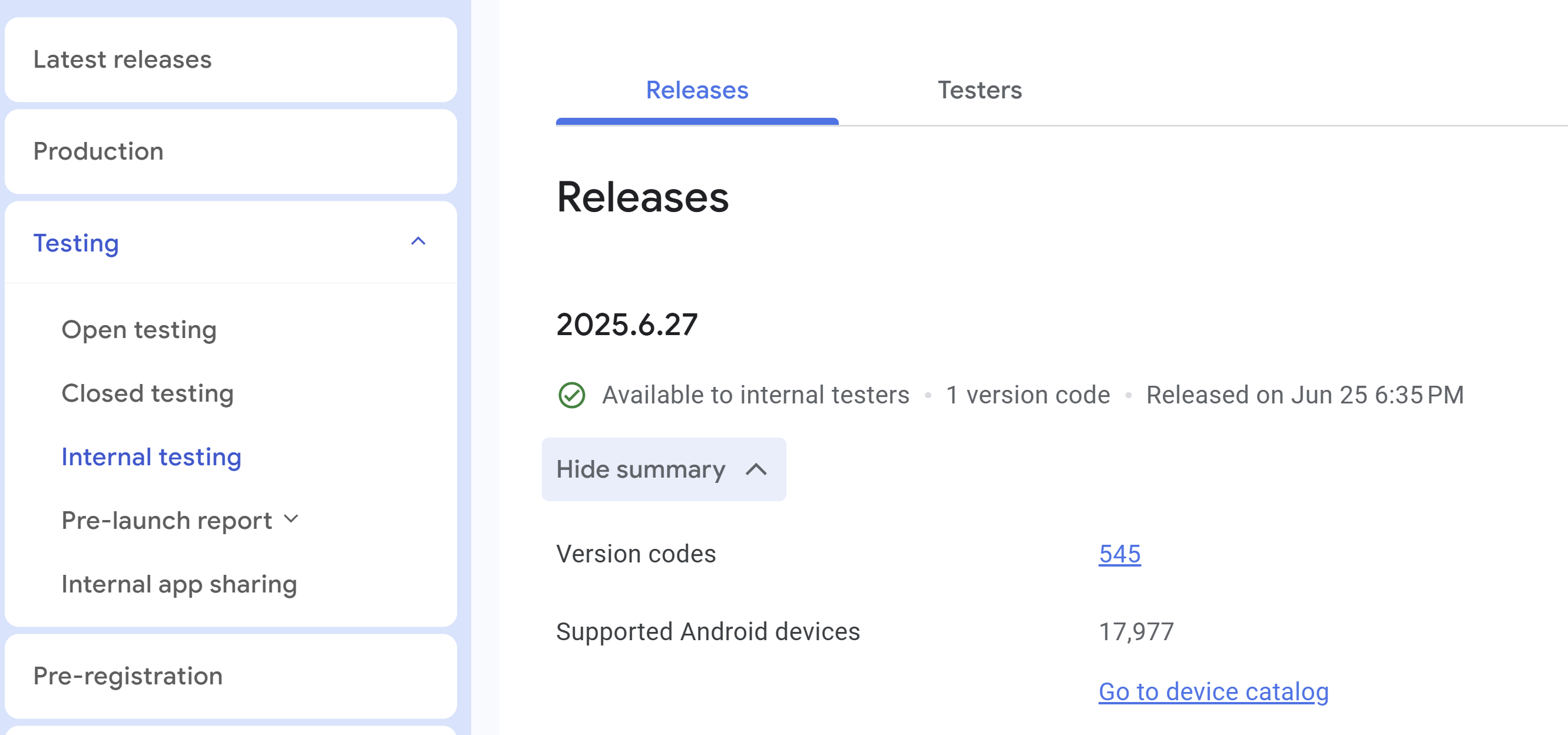
You should also be able to see the new version released for your internal test users in Google play console.
You can promote or increase the rollout of your application by following this doc.
About the Author
I am yet another developer who is passionate about writing and sharing knowledge. I have written more than 500 blogs on my blog. If you like this content, consider following me here,
Your turn. What do you think?
Thanks a lot for reading. Did I miss anything that you may think is needed in this article? Could you find this post useful? Kindly do not forget to share your feedback.